Connect Claude via MCP
Add the official Contextflo connector to your Claude organization in under a minute
Last updated: 10/8/2026
Connect Contextflo to Claude so you can ask questions about your data in natural language. Contextflo is listed in Claude's connector directory, so there is no URL to paste.
Prerequisites
- Claude Team or Enterprise, and an owner or admin role in your Claude organization
- Active Contextflo account
- At least one data source connected in Contextflo
Claude Team Plan
An admin adds Contextflo once for the whole organization. The whole flow takes under a minute:
Admin setup
1. Open Contextflo in Claude's directory. Go to claude.ai/directory/contextflo.
2. Add it for your organization. Click Connect for your team.
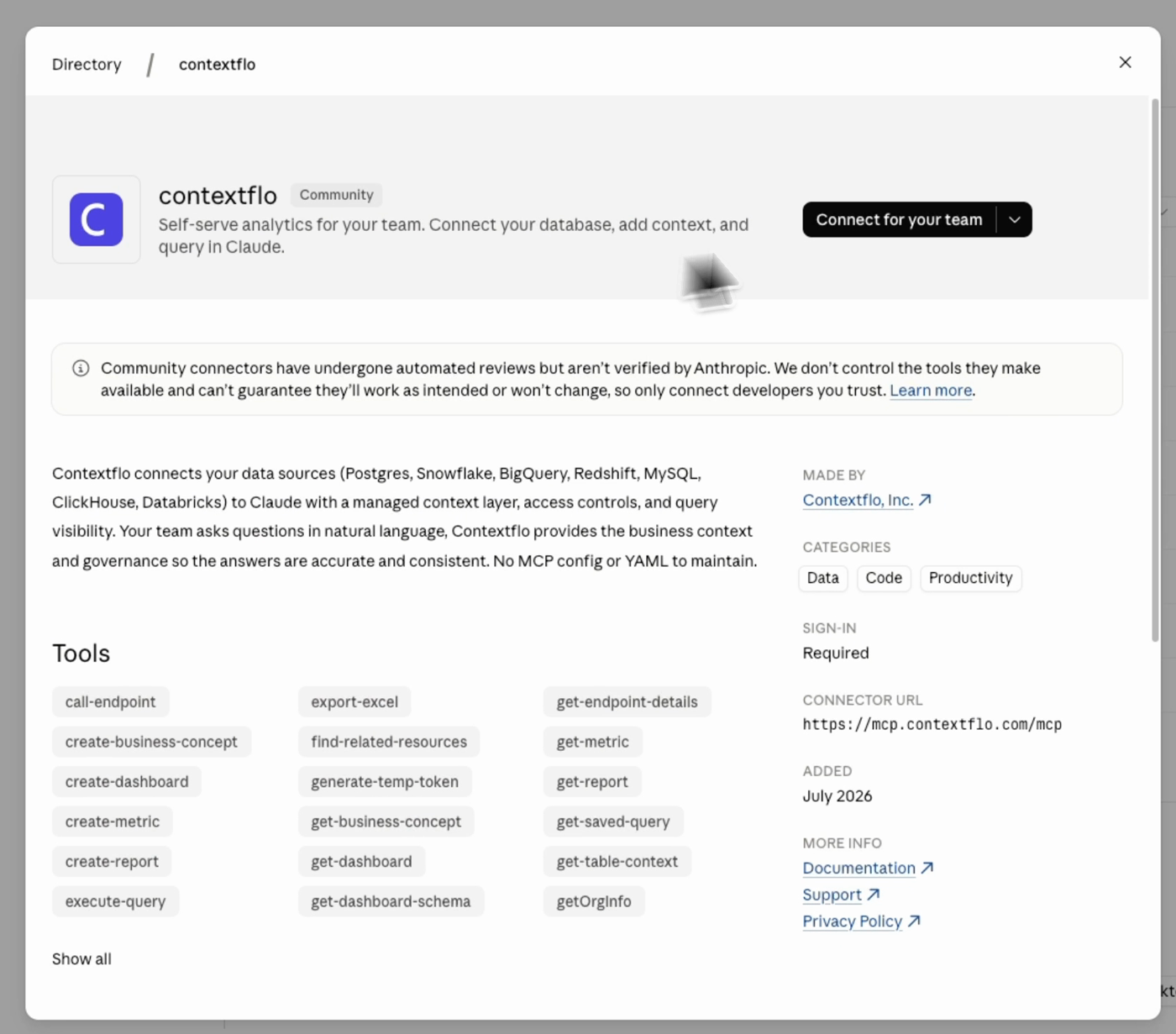
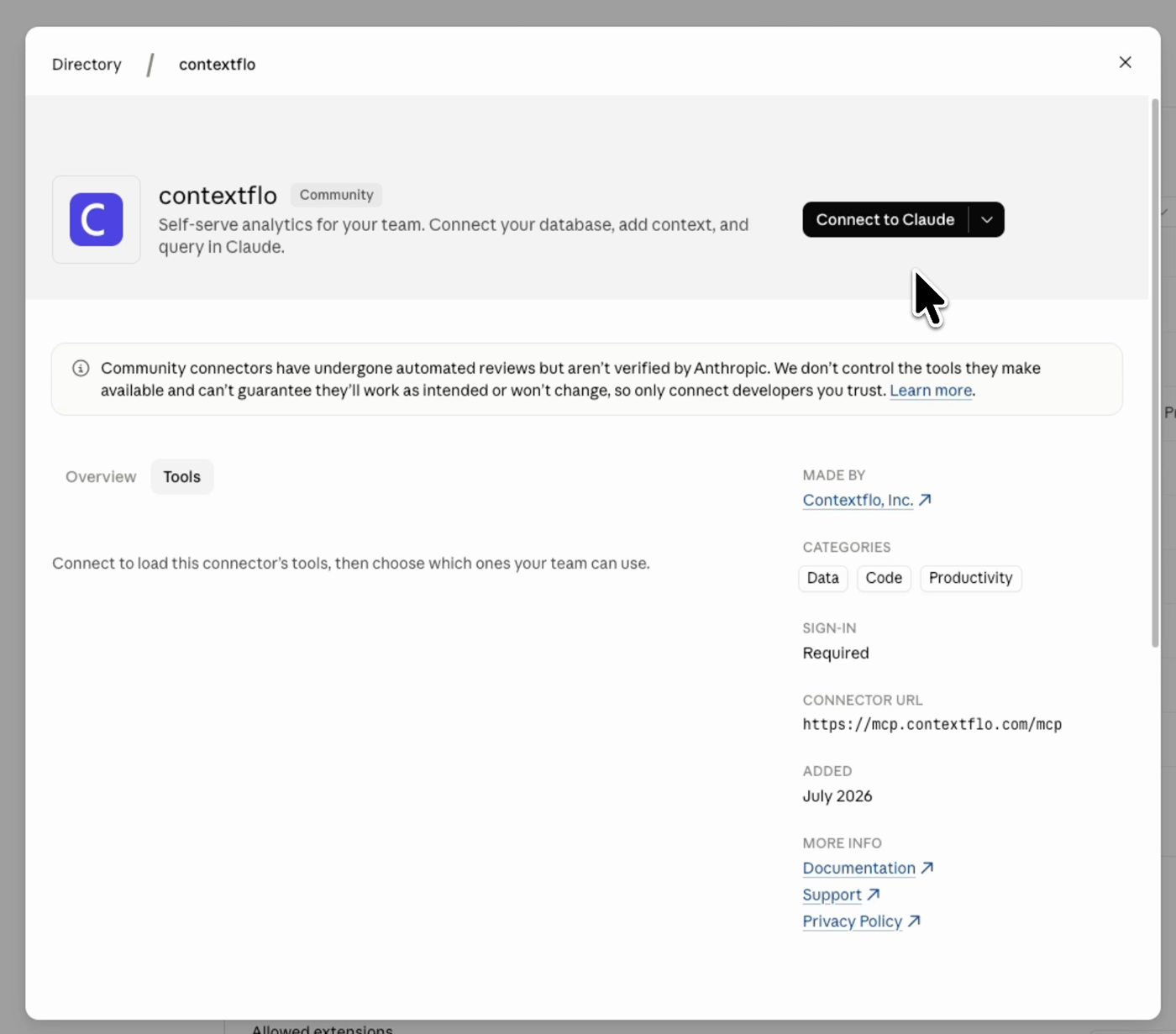
3. Connect your own account. The button changes to Connect to Claude. Click it.
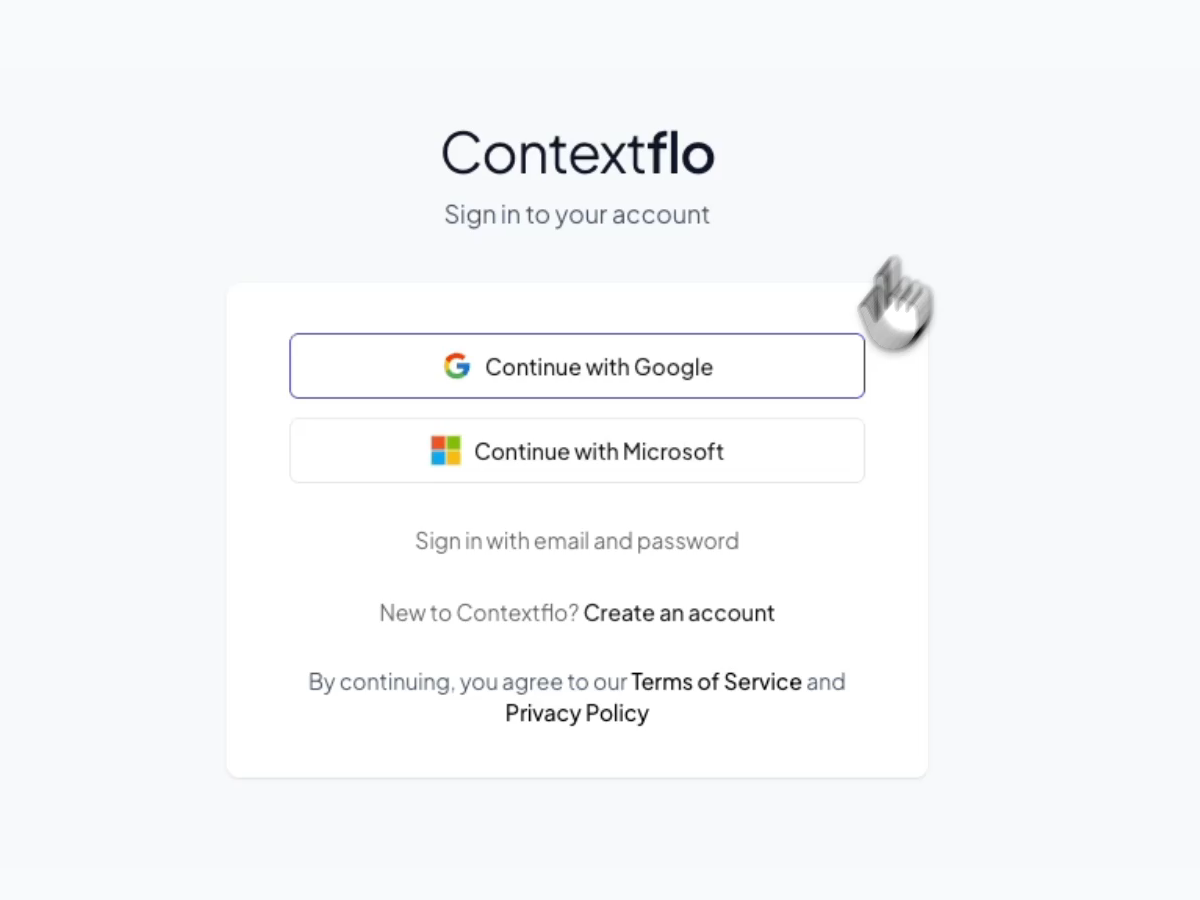
4. Sign in to Contextflo. Claude opens the Contextflo sign-in. Use the same account you use for Contextflo.
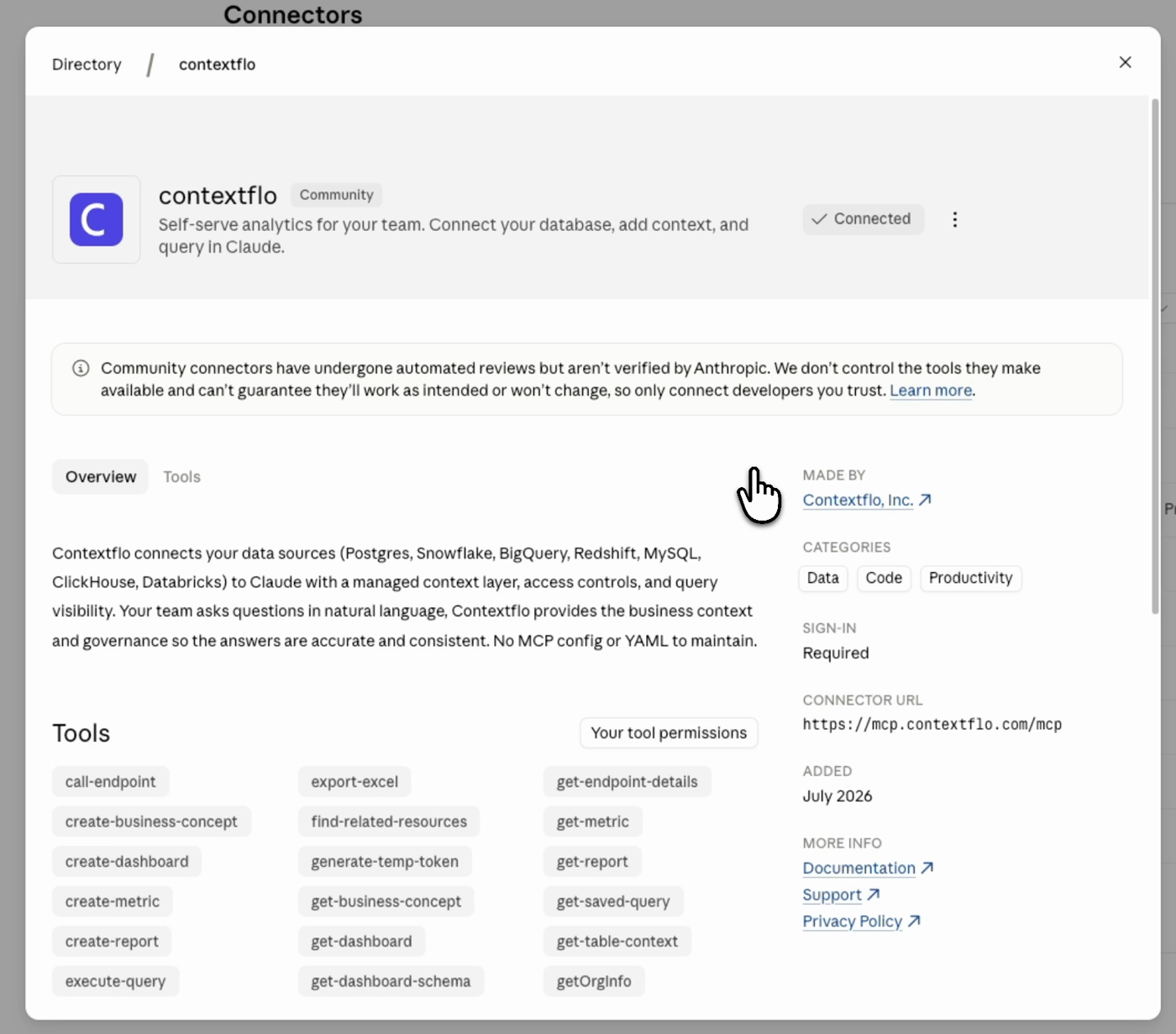
5. You're connected. Back in Claude, the connector shows Connected.
Team member setup
Each team member connects individually:
- Go to claude.ai/customize/connectors
- Find contextflo and click Connect
- You'll be redirected to Contextflo to sign in, and once you do, you're connected
- Start a chat and ask a question with @cf at the start (e.g.
@cf list my tables)
Verification
Start a new chat in Claude and type: @cf list my tables. Claude should respond with your database tables.