How to connect Google Sheets to Claude, and ask it alongside your warehouse
Connect a Google Sheet to Claude or ChatGPT with Contextflo and ask questions that combine it with your warehouse data. Three setup steps, read-only access, refreshed daily.
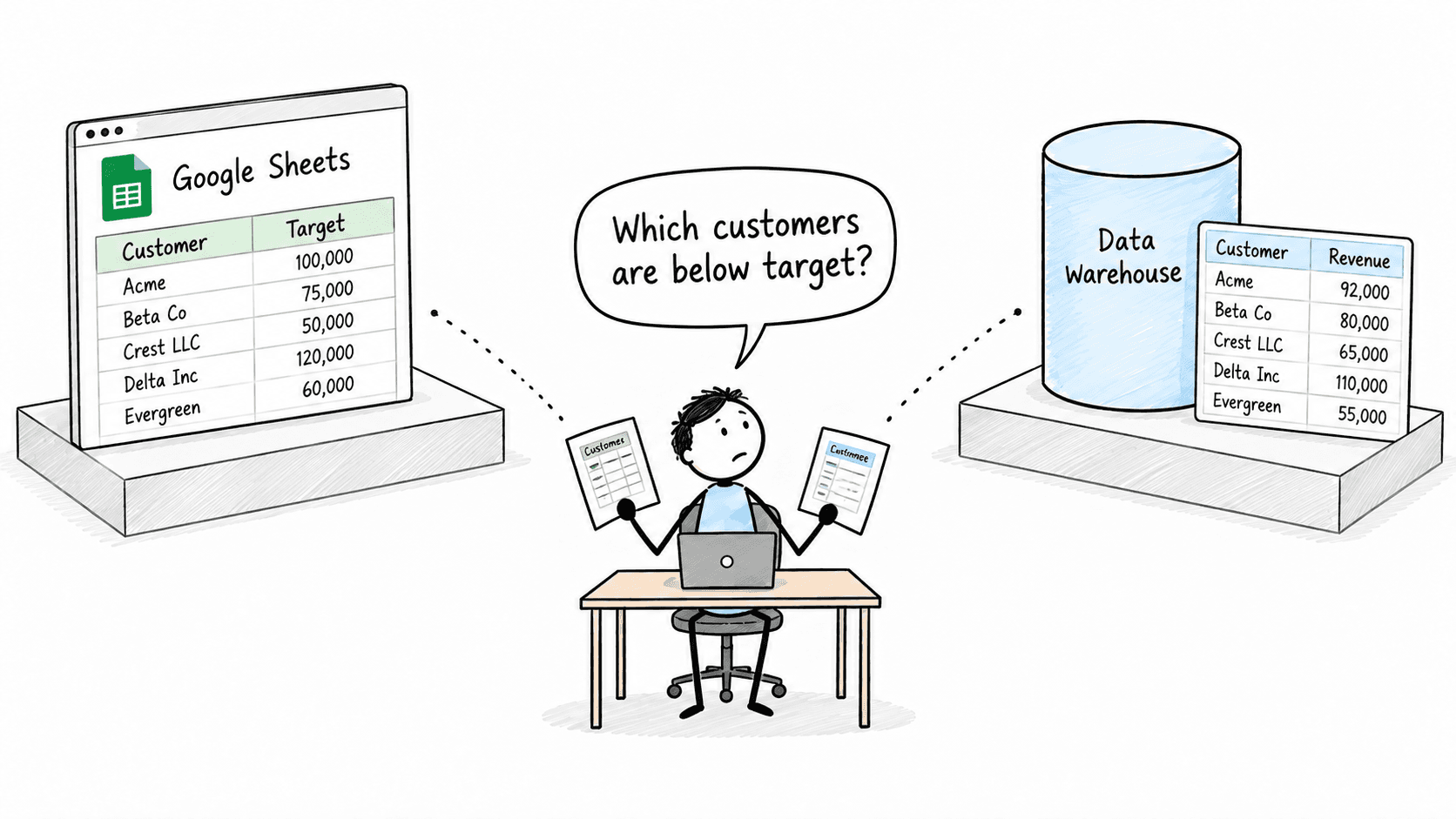
Not all your data is in the warehouse. Targets, budgets, forecasts and the marketing calendar live in a Google Sheet someone updates every week, and they rarely get ingested anywhere. The questions that matter usually need both: are we on plan this month?
Contextflo now connects Google Sheets. Share a sheet once, and anyone on your team can ask about it in Claude or ChatGPT, right alongside the warehouse. No ETL project, and nobody to hire to set it up.
What this looks like with a real question
The demo uses RunGear, a running-apparel brand we keep as a test dataset. Its orders live in BigQuery. Its plan lives where most plans live: a sheet called "RG Ops Master" with a monthly targets tab and a marketing calendar tab, next to five other tabs nobody has cleaned up in years.
The question was one line:
How are we pacing against September's plan by channel? Check the events calendar too. Which channel is actually behind?
Claude pulled September actuals from BigQuery, read the targets tab and the calendar tab, and came back with this:
| Channel | Month to date | September target | % of target | With the calendar |
|---|---|---|---|---|
| Online | $249.8k | $320k | 78% | On plan, ~102% projected |
| Retail store | $69.1k | $115k | 60% | Behind, about $26k short |
| Pop-up | $34.1k | $75k | 46% | On track if the Portland expo lands |
On a straight-line basis pop-up looks like the worst channel. Claude called that a timing illusion: most of the pop-up target lands at a marathon expo later in the month, and the calendar tab says so. Retail is the real problem, because its big in-store launch weekend had already happened and there was nothing left on the calendar to close the gap.
It also flagged things nobody asked about. The launch weekend brought in $11.4k against the $15k in the calendar, and the fall email produced no visible lift on the day it went out. Neither number exists in the warehouse or the sheet alone.
How to connect a sheet
- Share the sheet with your workspace's Contextflo address. The connect dialog shows it. Give it viewer access, the same way you would share with a colleague.
- Paste the sheet link and pick the tabs you want. Each tab becomes its own table. Leave the scratch tabs unticked.
- Add a line of context for each tab. What it contains, and anything a new hire would need to be told, like "pop-up sales happen at race expos." This is what lets the agent read the tab the way your team does.
Then ask in Claude or ChatGPT. Those three steps are the whole setup, the same ones in the video above.
What happens under the hood
Each tab you pick is imported as a table that Contextflo can query with SQL. The context you add is stored with it, and served to your agent together with your warehouse schema, metric definitions and saved queries, so the agent sees one picture of your data instead of a warehouse and a stray spreadsheet.
When a question spans both, the agent queries the warehouse and the sheet separately and combines the results in its answer. A single SQL join across a sheet and a warehouse table is not supported. For the kinds of sheets this is built for (plans, targets, calendars, mappings) that has not mattered, but a sheet with hundreds of thousands of rows belongs in the warehouse.
Access stays narrow. Each workspace gets its own read-only Google account, so Contextflo only sees sheets you explicitly share with it, and never another workspace's. Every question against the sheet is logged to the person who asked, like any warehouse query.
Keeping it current
Your team keeps editing the sheet the way it always has. Contextflo checks each connected sheet once a day and re-imports it only when something changed. If you just updated a target and want to ask about it right away, hit Sync on the data sources page.
It is not live to the second. For plans and calendars that change a few times a week, a daily refresh plus a sync button has been enough.
Try it on your own sheet
If your team's numbers live in a sheet the warehouse never sees, this is the fastest way to ask about both at once. You can get started free with one user and one data source, or book 20 minutes and I will set it up with you.
The CSV version of this, for a one-off file rather than a sheet your team keeps editing, is in query a CSV and your warehouse together.
Find out if Contextflo is the right fit for you.
See how teams use Contextflo

Keep reading
Conversational analytics: 5 ways to set it up, compared
7 min read
Connect Claude to BigQuery: the connector, the errors, a team path
8 min read
Connect Claude to Postgres: MCP Setup Guide
8 min read

How to build a BI dashboard with Claude that your team can actually trust
8 min read
Is it safe to give Claude read-only access to your database?
5 min read

You connected your warehouse to Claude, now what?
5 min read
A travel company's revenue team stopped opening Power BI every morning
3 min read
How finance and ops teams catch the numbers that don't match, before a customer does
4 min read

How ops teams catch a problem before the tickets start
4 min read